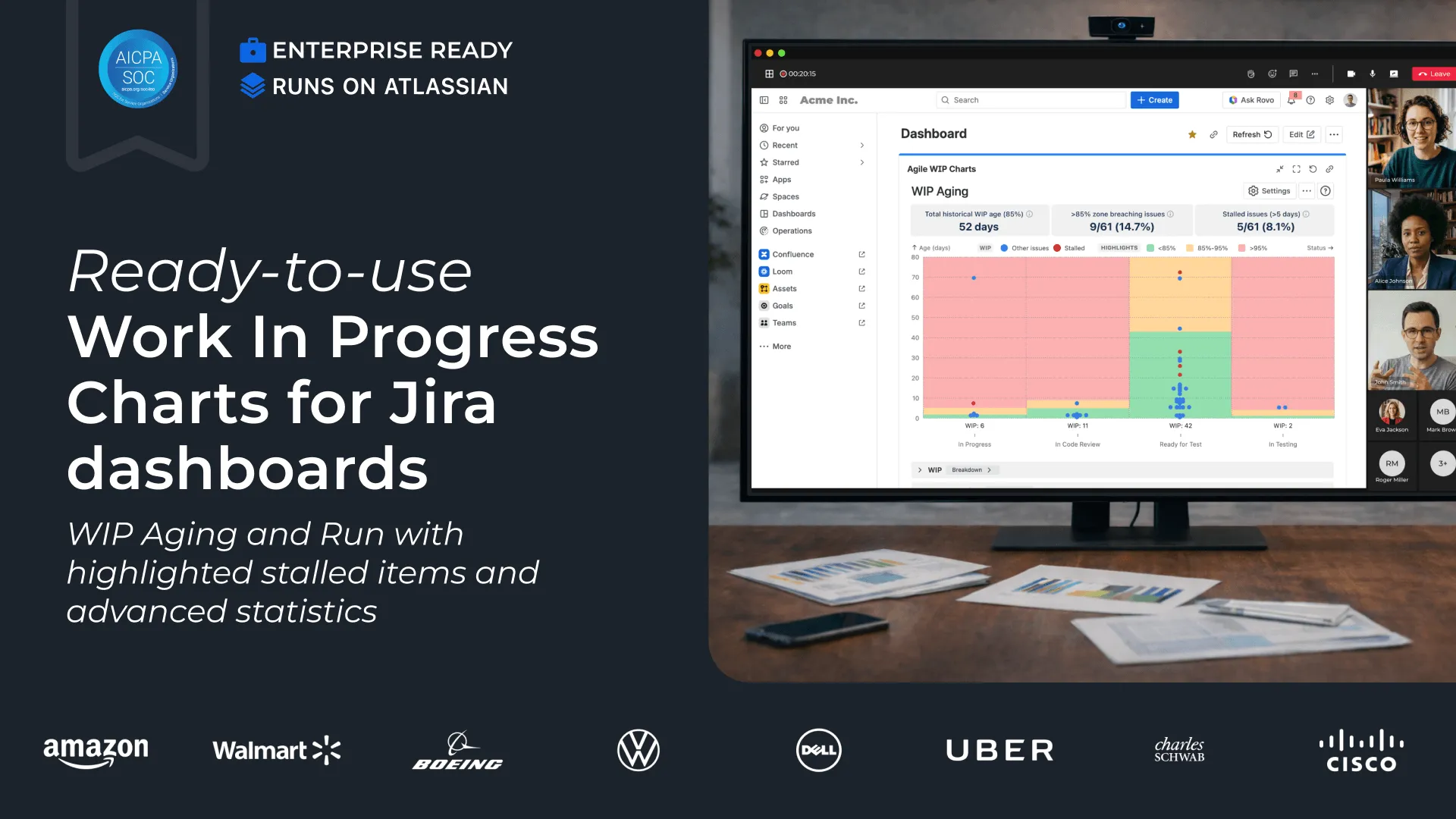
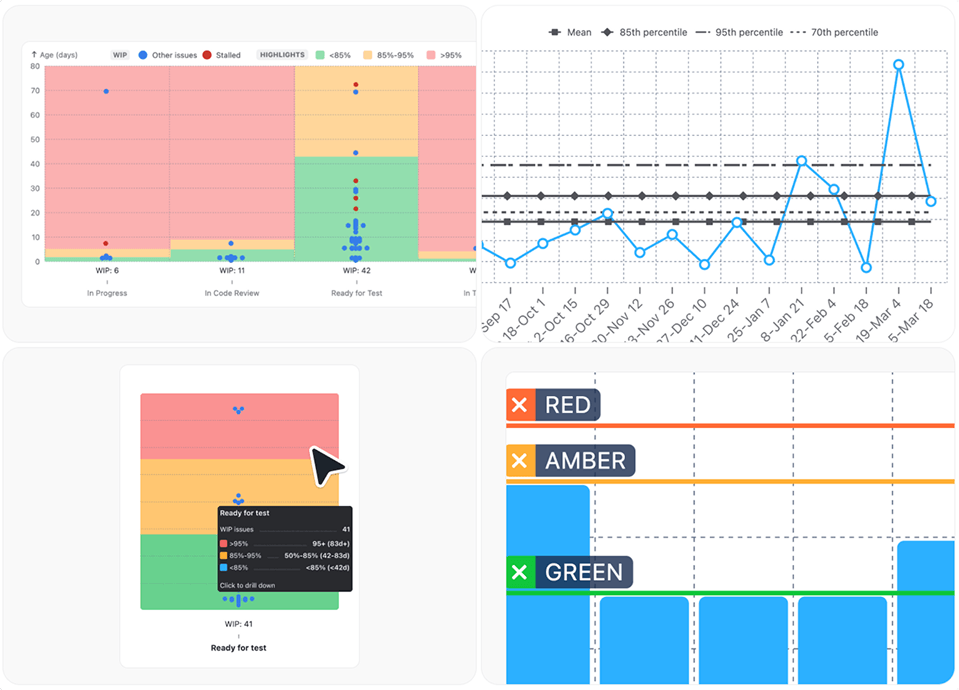
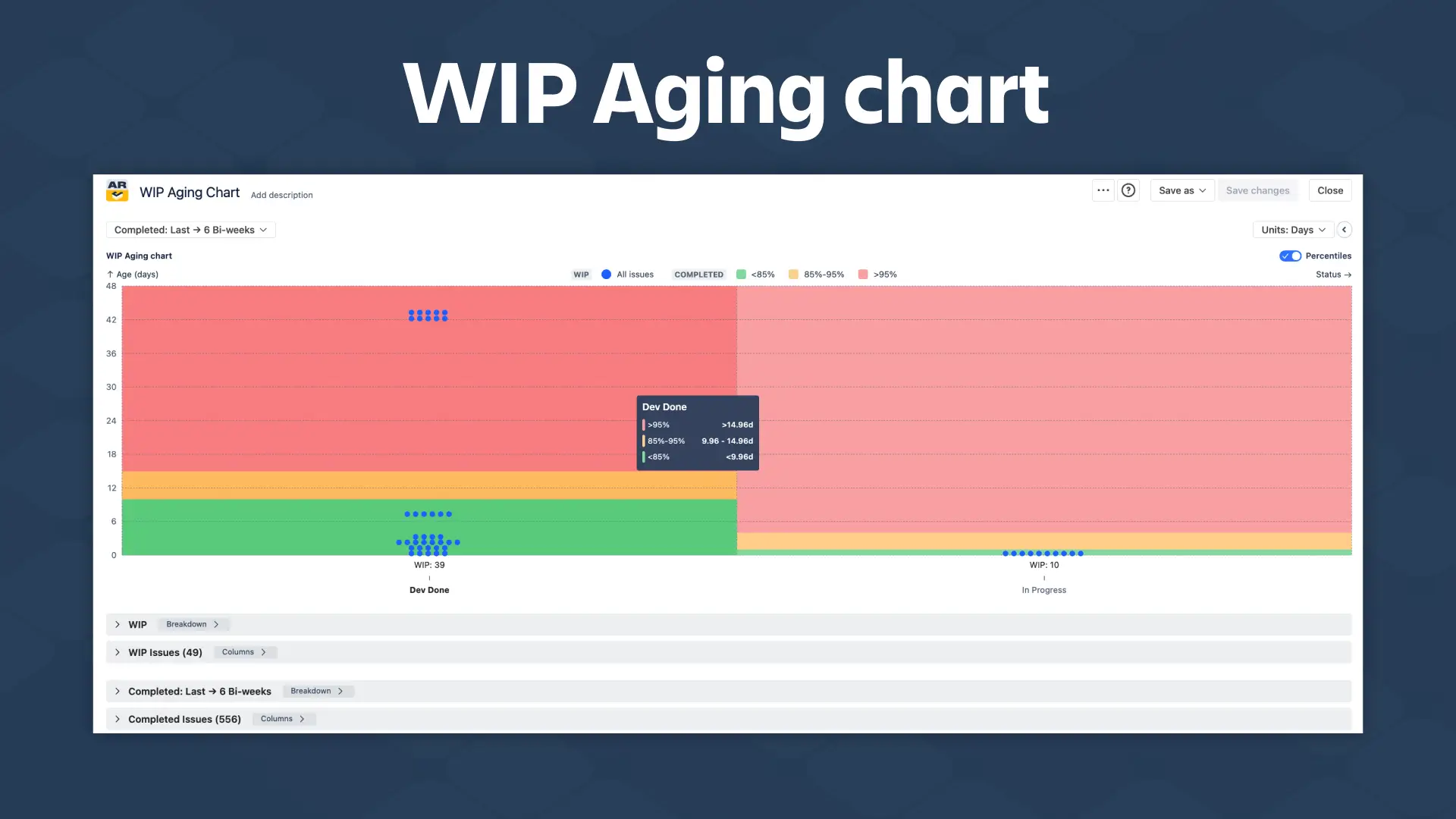
See how long work stays in progress and how much of it exists over time - detect bottlenecks, aging items, and flow instability with WIP Aging and WIP Run charts.
Key features of the Work in Progress (WIP) chart in Jira
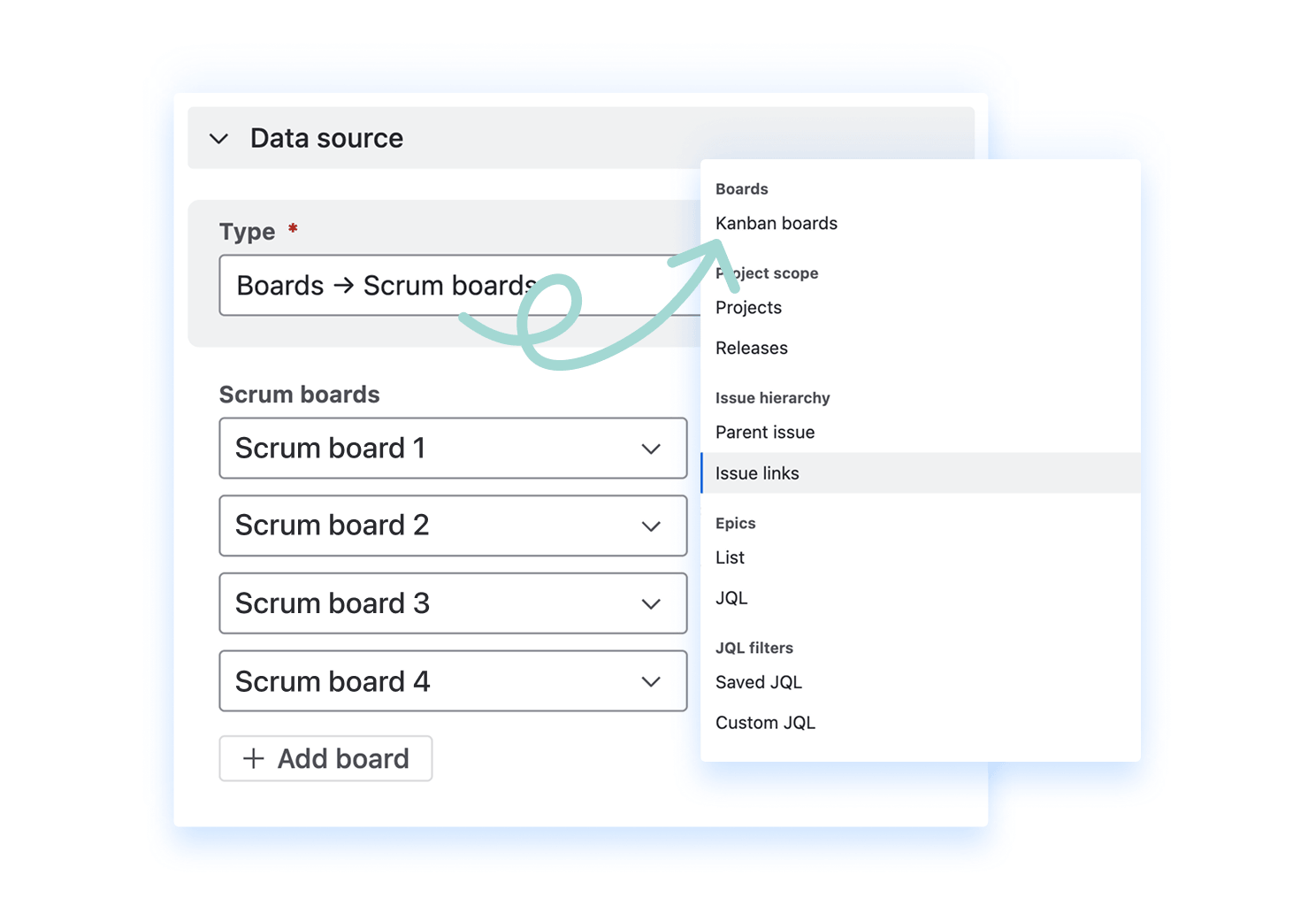
Analyze Work in progress directly in Jira using data from one or multiple Boards or Teams, Projects, Epics, Releases, Initiatives (issue hierarchy), or JQL filters.
Choose how much WIP data to analyze and how to group it. Use recent, current, custom, or date-based ranges, and group work in progress by day, week, sprint, or month to align with your analysis needs
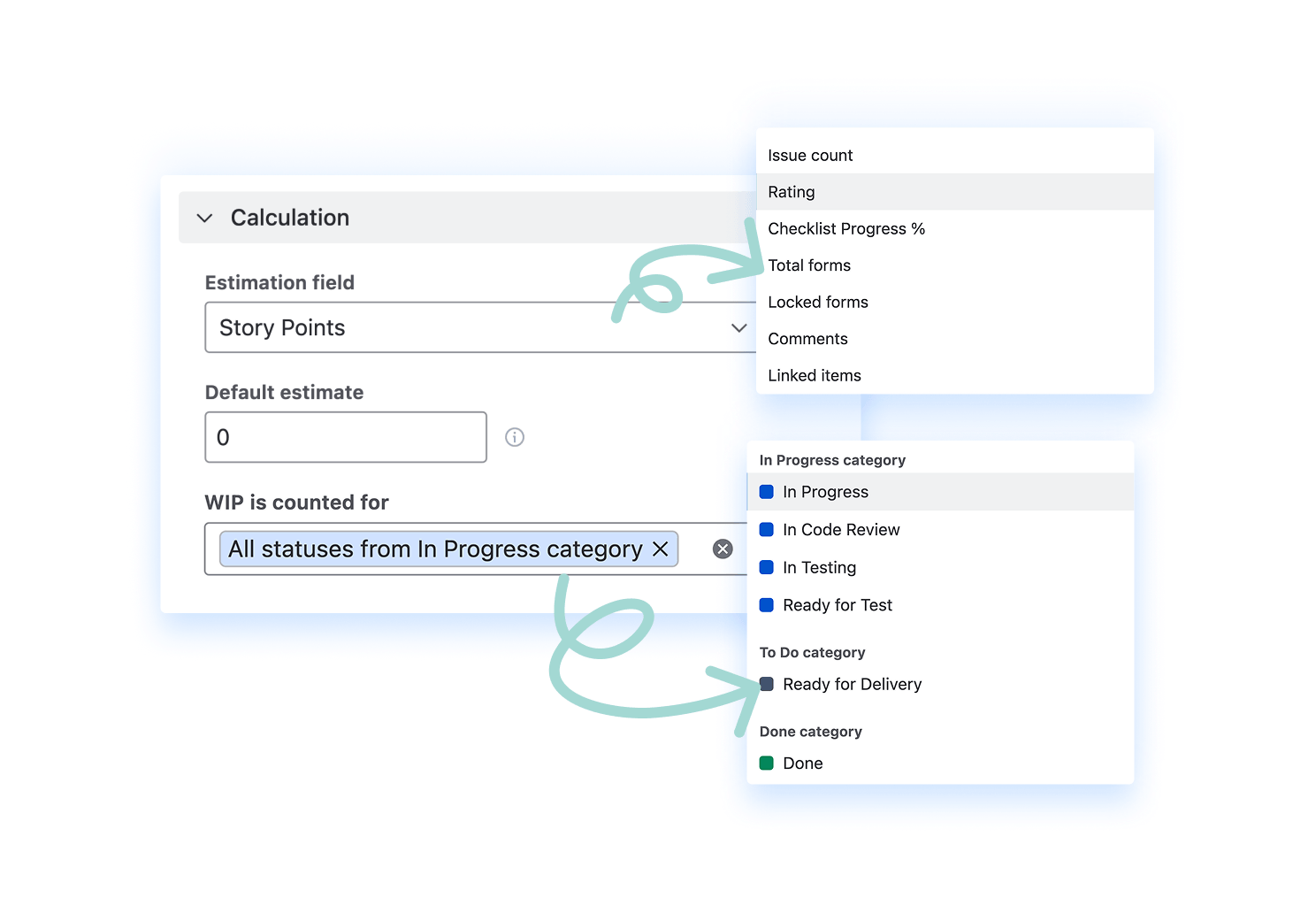
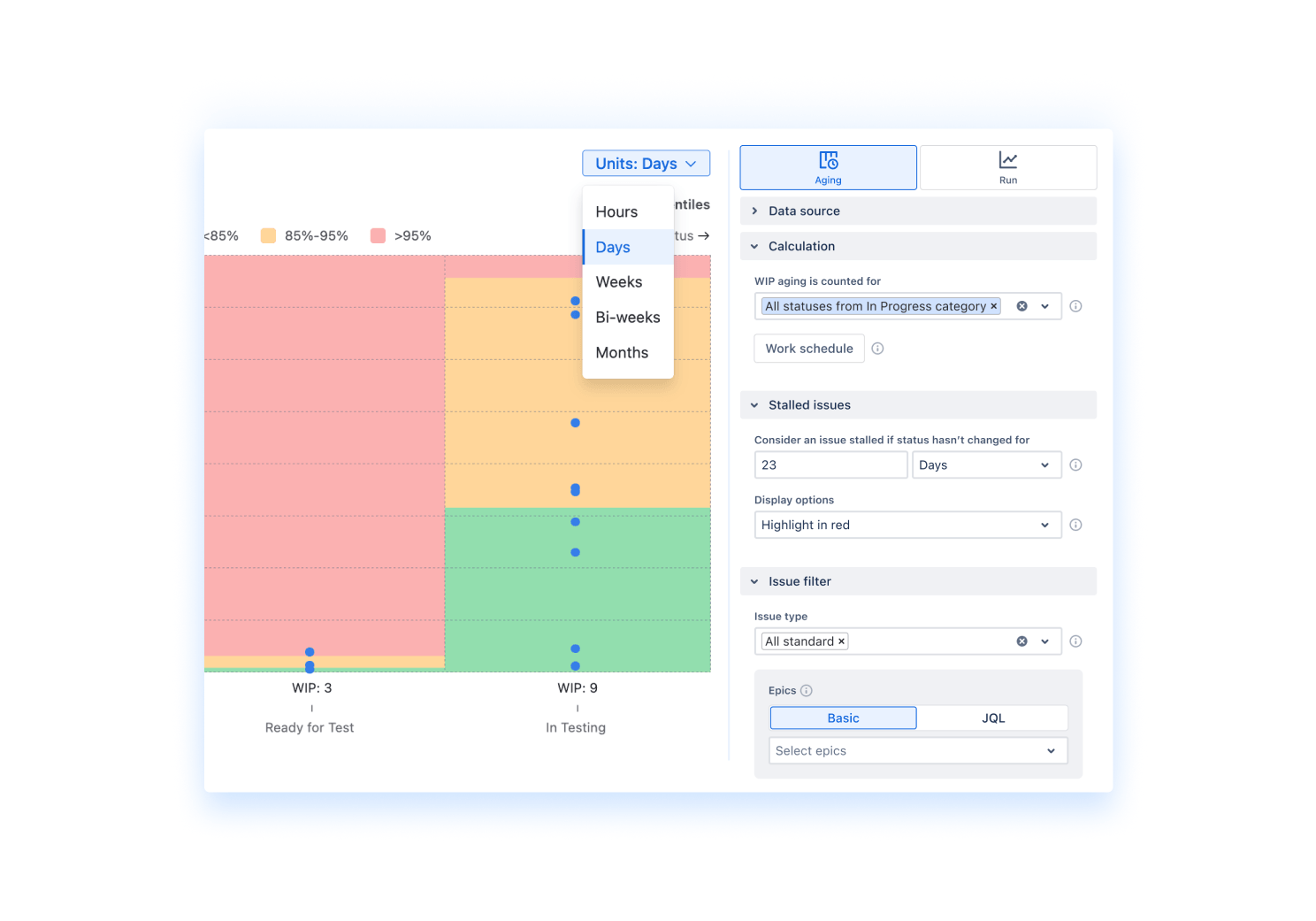
Control how Work in Progress is calculated by selecting estimation fields, setting default estimates, and defining WIP statuses.
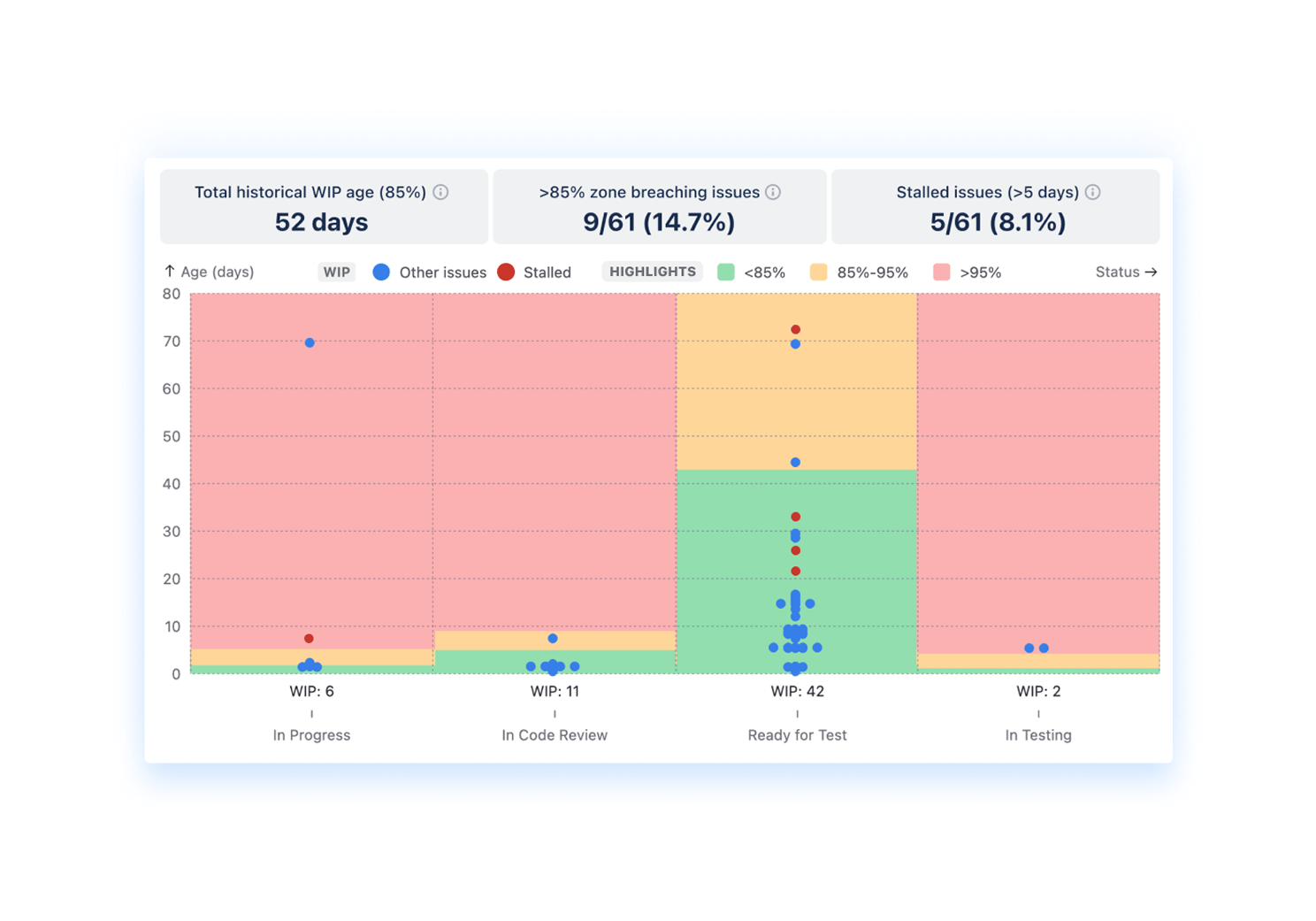
Seehow long work items stay in each workflow stage
Spotaging, stalled, or at-risk items early
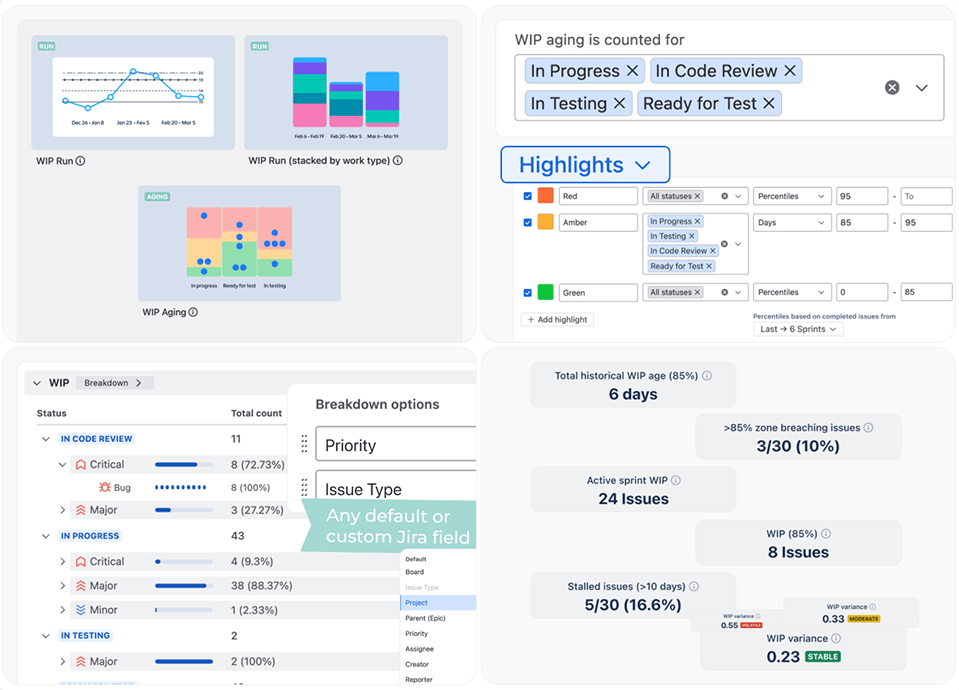
Monitor health metrics above the chart (percentile zone breaches, stalled issues, WIP age (%)
Get instant visibility into flow risks and team performance
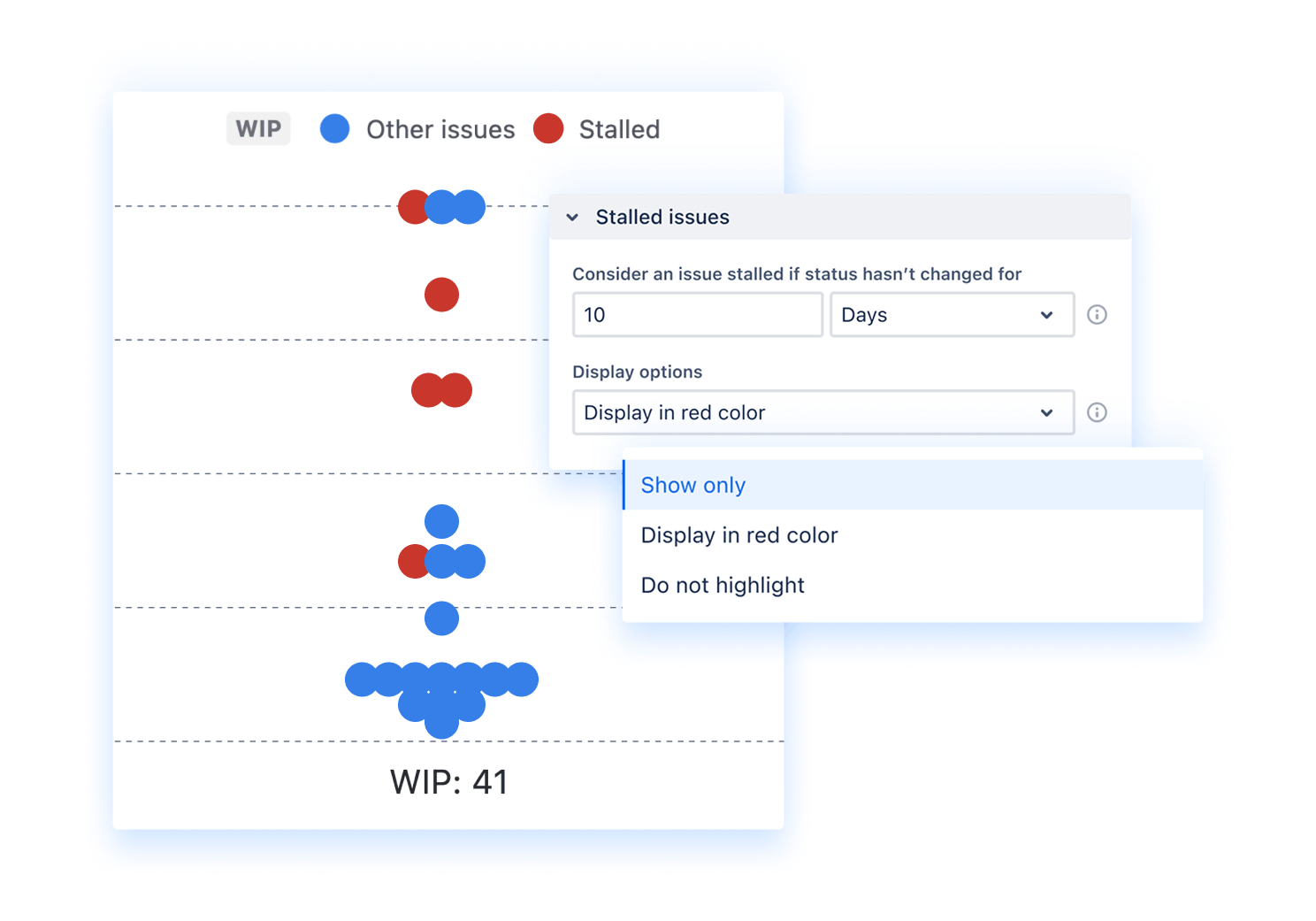
Automatically detect WIP work items that exceed aging thresholds
Configure custom time limits (e.g., 10+ days without a status change)
Highlight stalled issues on the chart or isolate them for focus
Surface stalled items as a health metric (count & %)
Quickly identify blocked work and emerging bottlenecks
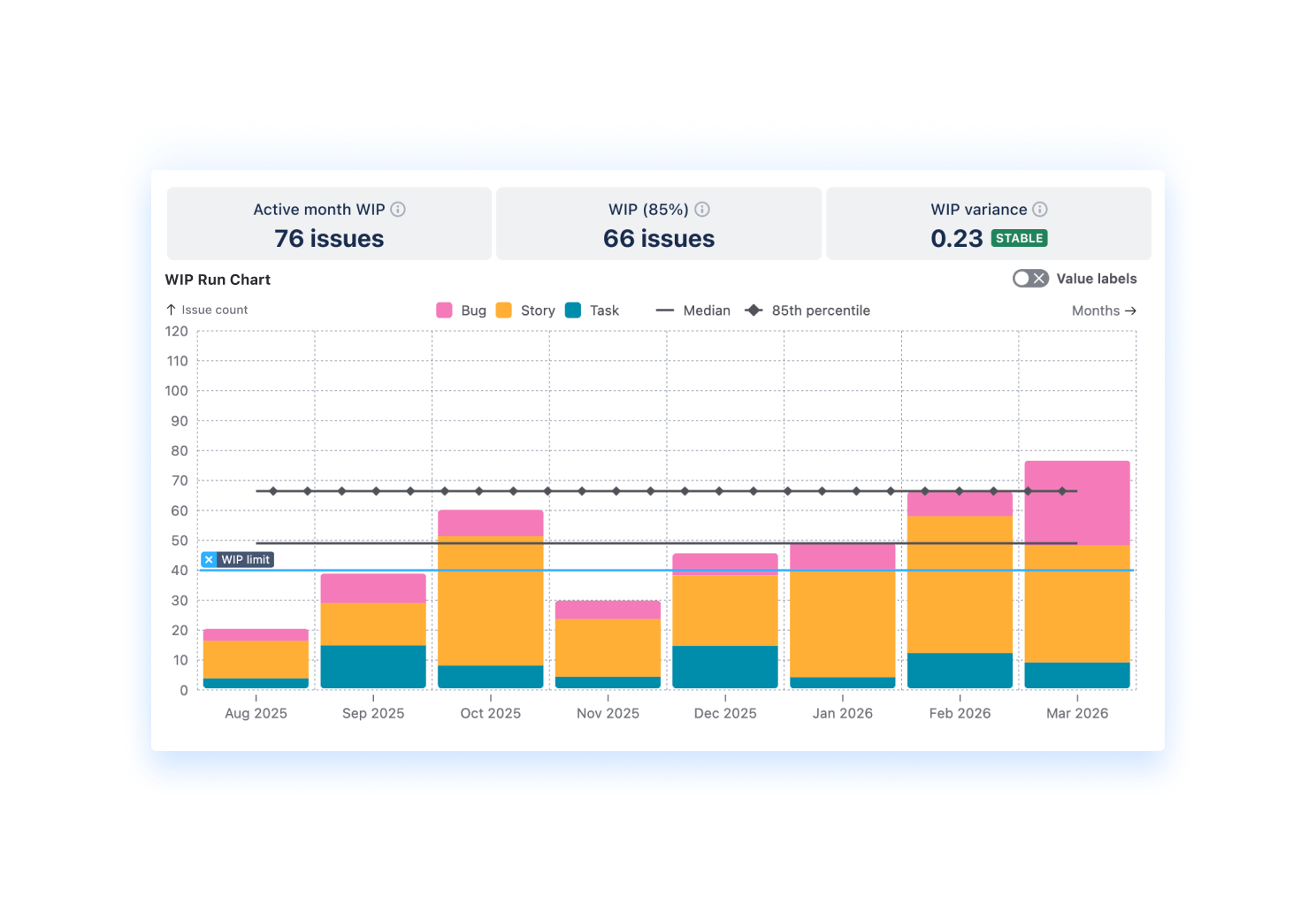
Track how much work is in progress over time
Understand system load, stability, and flow consistency
Spot trends, variability, and potential overload
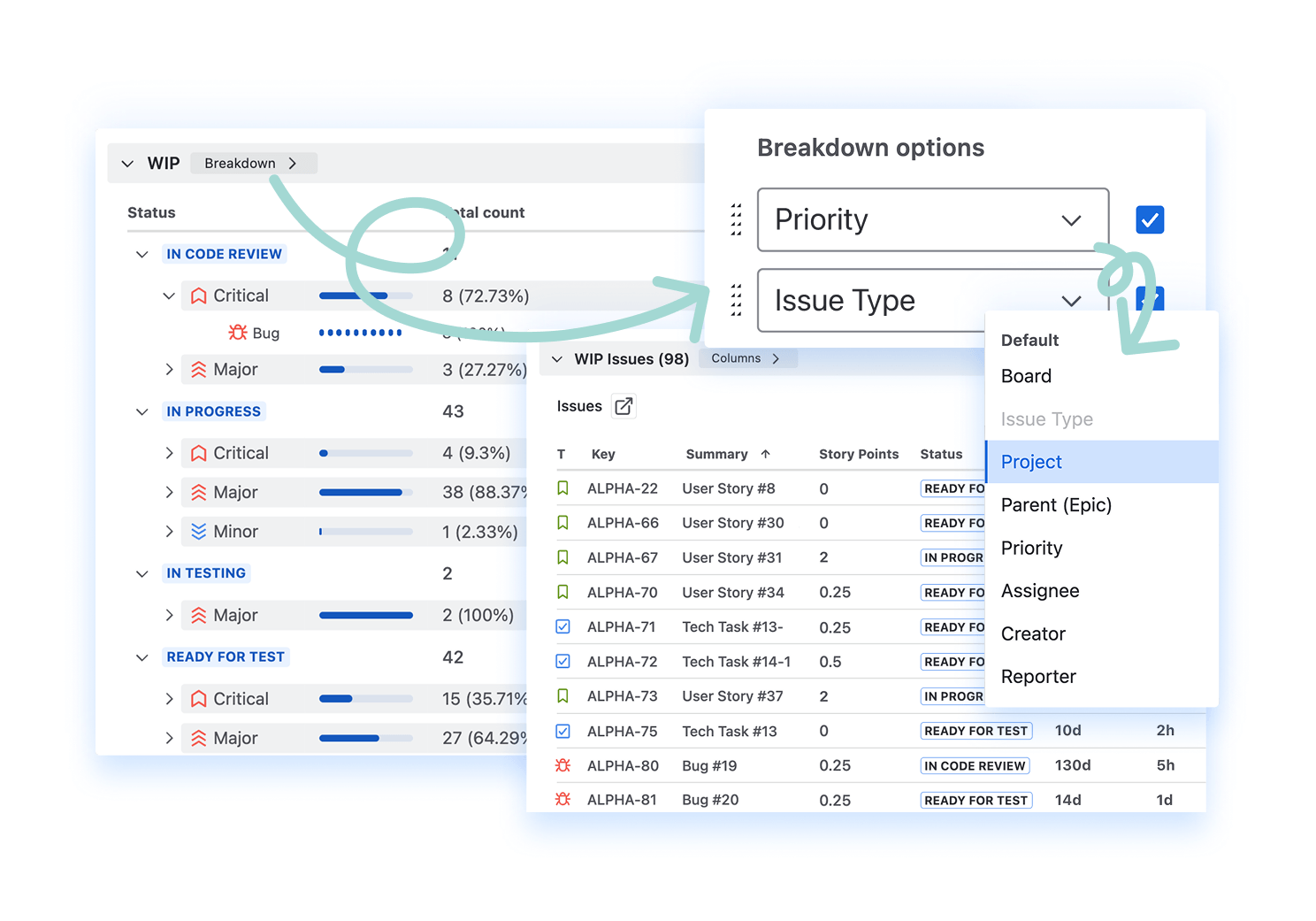
Break down WIP by segments (team, issue type, epic, etc.)
Add targets and WIP limits to compare actual vs expected flow
Monitor WIP metrics above the chart (WIP%, Active interval WIP, WIP variance)
Use the stacked bar view to segment WIP across dimensions (team, issue type, epic, assignee, etc.)
Visualize how each segment contributes to the total WIP
Identify where work is accumulating within specific categories
Spot imbalances across teams or work types
Drill down into segments for deeper flow analysis
Break down data by team, assignee, issue type, release, JQL, etc., and other fields, and drill down to issue-level insights. Use the WIP Aging chart to compare in-progress and historical (completed) work, or the WIP Run chart to analyze all issues within scope.
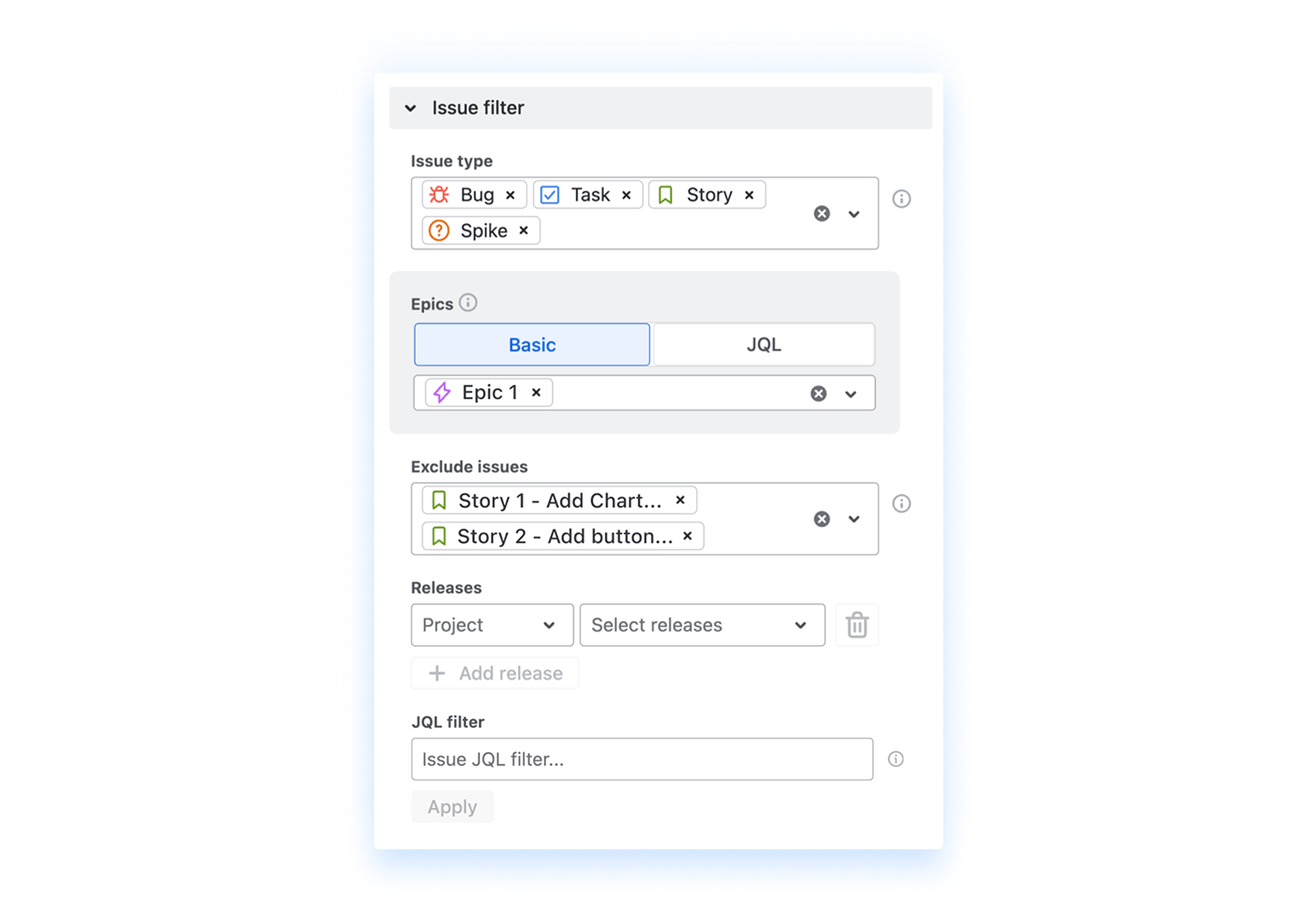
Fine-tune your flow metrics by defining which issues are included in WIP calculations.
Select issue types – focus on stories, bugs, tasks, or custom work items
Narrow scope by epics – analyze flow within specific initiatives
Adjust issue scope – include or exclude outliers, test work, or irrelevant items
Filter by releases – track flow across selected versions or delivery scopes
Leverage JQL queries – build flexible filters with advanced conditions
Combine multiple filters – tailor analysis to match real workflow scenarios
Configure your Agile WIP charts with an intuitive what-you-see-is-what-you-get editor - define flow stages, adjust aging settings, apply filters, and see updates instantly without extra steps or reloads.
1. What is the aging work in progress (WIP) chart?
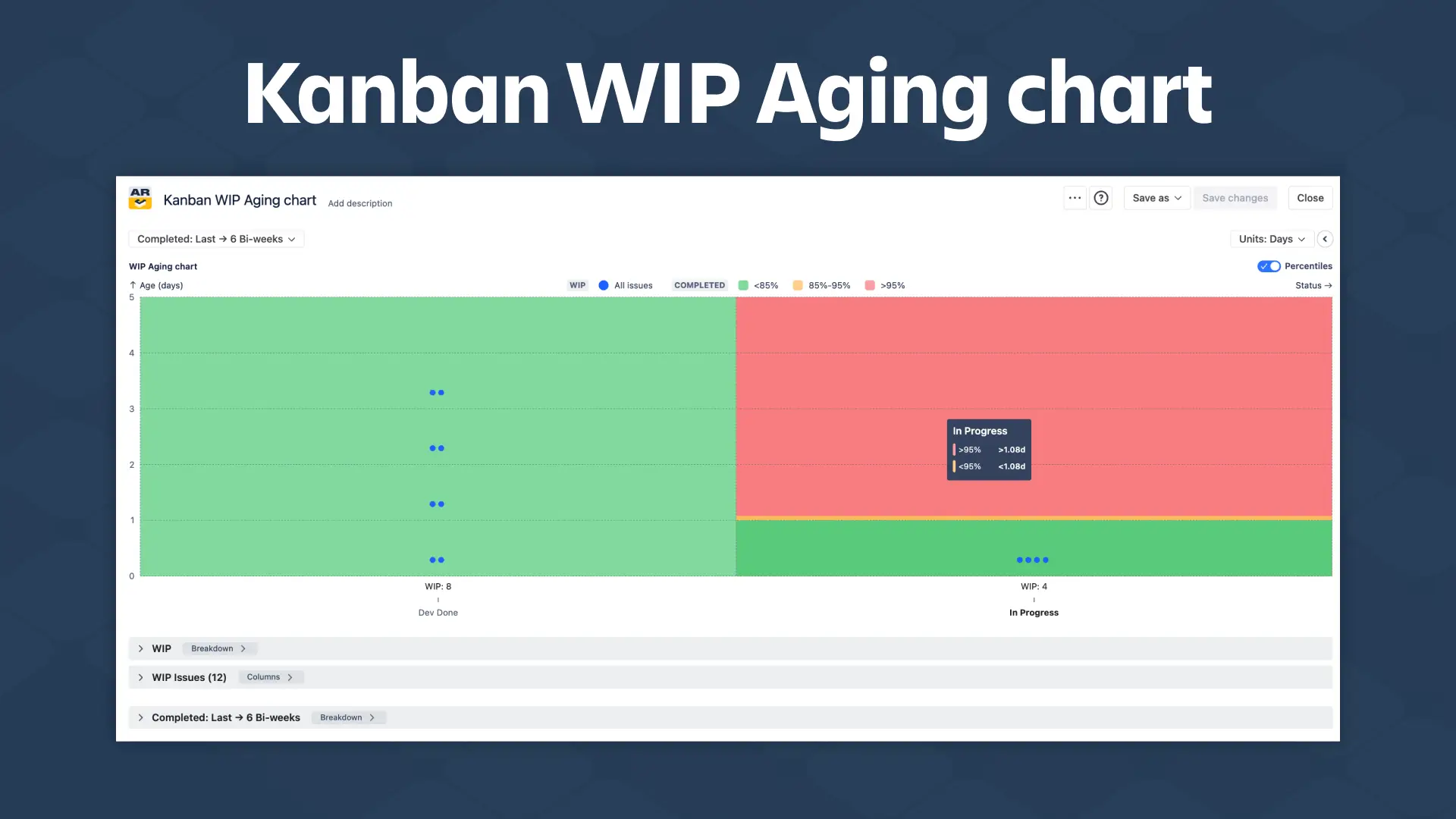
The WIP aging is a flow metric that measures how long work items stay in progress across your workflow stages. Each item is visualized by its current stage and age, helping you quickly identify delays, stalled tasks, and work that is taking longer than expected.
By using percentile-based aging zones, the chart highlights items at risk of becoming bottlenecks, enabling you to take action before they impact delivery.
In the Agile WIP Chartsapp for Jira, the WIP Aging chart goes beyond basic visualization by combining real-time aging insights with health metrics, percentile highlights, and drill-down capabilities. You can instantly explore issue-level data, break down flow by any field, and monitor delivery risks across teams, projects, or releases - all in one place.
2. What is the WIP Run chart?
The WIP Run chart shows how much work is in progress over time. It helps teams understand workload trends, detect spikes, and maintain a stable flow.
With the Agile WIP Charts app by Broken Build, you can monitor WIP trends across teams, projects, or releases and quickly identify flow instability.
3. Why is tracking WIP important for Agile teams?
Tracking WIP helps teams limit overload, identify bottlenecks, and maintain a steady flow of work. This leads to improved efficiency, faster delivery, and better predictability.
4. How do you identify bottlenecks using Work in Progress (WIP) charts?
Bottlenecks appear when work items stay too long in a specific stage or when WIP levels continuously increase.
WIP Aging highlights aging items, while WIP Run reveals growing queues and instability.
5. Can I drill down to see which issues are causing delays?
Yes. You can drill down from charts directly to issue-level data to understand what’s behind bottlenecks, aging work, or spikes in WIP.
In Agile WIP Charts for Jira, breakdown and issue list views let you analyze flow by any dimension and validate every insight.
6. Can I use WIP charts across multiple boards or projects?
Yes. You can combine data from multiple boards, projects, or scopes to get a unified view of your flow across teams or at the portfolio level.
7. How is this different from standard Jira reports?
Jira’s native Average Age Report shows the average age of in-progress issues, but it provides only a single aggregated metric, without showing distribution, outliers, or where items are stuck.
With Agile WIP Charts for Jira, you get advanced flow visibility, customizable metrics, and actionable insights in one place.
8. How do I add Agile WIP charts to a Jira dashboard?
To add WIP Aging or WIP Run charts to a Jira dashboard, install the Agile WIP Charts app and start with a free 30-day trial. After installation, open your Jira dashboard, go to the gadget library, and add the WIP charts.
The charts appear instantly, allowing you to track aging work, monitor WIP trends over time, and analyze flow directly in Jira without additional setup.
9. How much does the Agile WIP Charts app cost?
The Agile WIP Chartsapp is free for teams with up to 10 users. For larger teams, pricing scales based on the number of users and can be calculated here.
A 30-day free trial is available, so you can explore WIP Aging, WIP Run, health metrics, and advanced flow analytics before making a decision.
Related interactive Examples
Sprint Aging chart
Interactive example of a Sprint Aging chart. Identify aging sprint items, detect bottlenecks, and catch at-risk work before it misses the sprint commitment.
TRY EXAMPLE
Kanban WIP Aging chart
Interactive example of a Kanban work item Aging chart. Detect bottlenecks, aging work, and stalled items across workflow stages to improve flow predictability and prevent delivery delays.
TRY EXAMPLE
WIP Aging chart
Interactive example of a WIP Aging chart. Identify aging work, detect bottlenecks, and track flow risks across workflow stages.